Compare Text Tool Guide: Best Options for 2026
You've opened the latest version of an article beside yesterday's draft, and the changes look minor. A sentence has been softened, a qualification has disappeared, and one translated phrase now sounds far more formal than you intended. Reading both versions from top to bottom won't reliably reveal what happened.
A good compare text tool removes that uncertainty. It shows exact edits, measures broader similarity, and gives writers a practical way to review contracts, articles, translations, study notes, and AI-assisted revisions. The best choice depends on what you're checking: precise wording, overall overlap, or whether a rewrite still expresses the same idea.
| Need | Best comparison method | What to prioritise |
|---|---|---|
| Proofreading a revised draft | Word-level or character-level diff | Clear additions, deletions, and context |
| Reviewing contracts or policies | Line-level and side-by-side diff | Traceable changes and private processing |
| Checking originality | Similarity scoring | Database coverage and careful interpretation |
| Reviewing AI-assisted edits | Diff plus human reading | Meaning, tone, register, and factual intent |
| Learning Spanish, French, or Italian | Diff with explanations | Grammar corrections without flattened style |
Table of Contents
- Why You Need a Dedicated Compare Text Tool
- Visual Diffs Versus Algorithmic Similarity Scoring
- Evaluating the Top Text Comparison Categories
- Tracking Meaningful Changes in Language Learning
- The Limits of Automated Accuracy and Plagiarism Detection
- Accessibility and Mobile-First Workflow Integration
- Choosing the Right Tool for Your Specific Needs
Why You Need a Dedicated Compare Text Tool
You finish a client email, save it, adjust the tone, and create another version under a slightly different filename. Later, your manager asks what changed. You remember removing one sentence, but not whether you also altered the deadline, softened a promise, or deleted an exception.
Ordinary word processors are poorly suited to that review. Track Changes works while everyone edits the same document, yet it becomes awkward when you compare pasted text, copied web content, exported files, or drafts made in different applications. A dedicated tool puts the two texts first and makes their relationship easy to inspect.
The practical distinction is clear:
- Track Changes records an editing session. It suits collaborators working inside one document who need to accept or reject revisions.
- A visual diff compares two finished states. It reveals changes even after the original editing history has vanished.
- A similarity checker evaluates overall overlap. It addresses originality questions, not whether a particular wording change is accurate.
- A semantic review examines meaning, tone, and implication. Advanced language analysis can assist, but human judgement remains necessary for consequential edits.
The UK has a strong use case for these workflows. The Information and Communication sector contributed about £187 billion in gross value added in 2024, with computer programming and consultancy among its largest subsectors, according to UK industry data. Text-heavy work spans legal review, procurement, policy drafting, finance, education, publishing, and software development. Writers, editors, and intermediate language learners all need to track meaningful changes, not merely count altered characters. A small revision can change an obligation, a register, or the intended meaning.
Practical rule: Ask “What exactly changed?” and use a diff. Ask “How much does this resemble another text?” and use similarity scoring. The outputs are not interchangeable.
A dedicated compare text tool also gives you a usable audit trail. Copy the result into an editorial note, send a change report to a colleague, or preserve before-and-after versions without reconstructing the editing history manually. For sensitive material, choose a browser-based tool that processes text locally when possible, reducing the need to send content to a remote service.
The best feature is not a colourful interface. It is reliable visibility into change.
Visual Diffs Versus Algorithmic Similarity Scoring
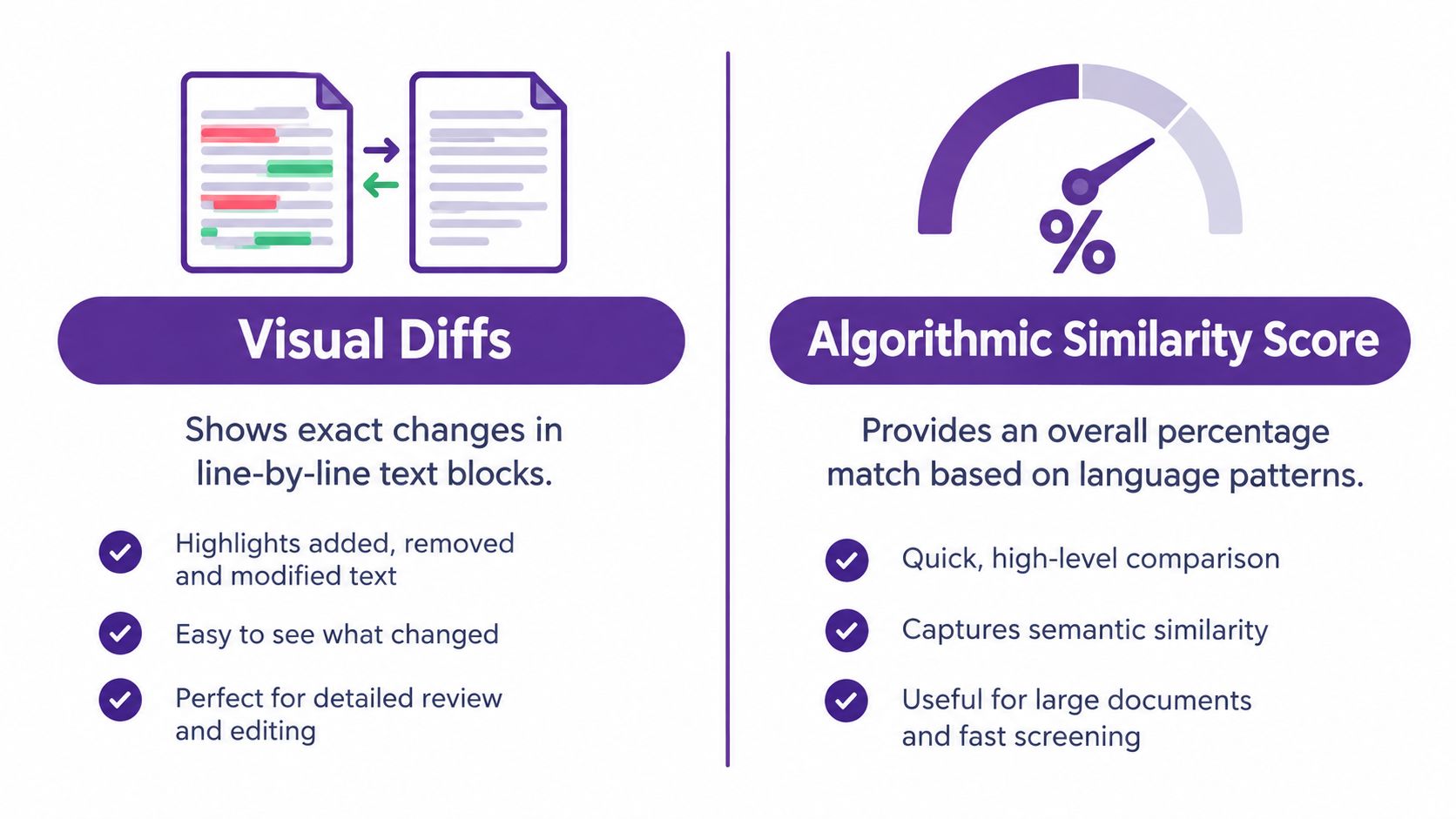
A visual diff and a similarity score answer different questions. Confusing them is one of the fastest ways to approve a bad edit or misunderstand an originality result.
Visual diffing shows the edit itself
A visual comparison engine identifies additions, deletions, and replacements in relation to the original text. Depending on the tool, you may be able to compare at character, word, or line level. Character comparison is useful for punctuation and spelling, word comparison usually offers the best balance for prose, and line comparison keeps structured documents readable.
For a contract, visual diffing lets you inspect whether “may” became “must”, whether a condition vanished, or whether a defined term changed. For an article, it shows where an editor cut repetition or inserted a qualification. It preserves local context, which matters because the same word can have different implications in different sentences.
Useful controls include:
- Ignore whitespace, when formatting changes aren't relevant.
- Ignore case, when capitalisation shouldn't count as a substantive edit.
- Side-by-side view, when both versions need to remain readable.
- Inline view, when the text is similar and you want changes embedded in context.
Visual diffing can also support technical workflows outside full version-control systems. If you're checking selectors or copied page content, a practical resource such as this XPath contains text guide can help you understand how text is targeted before you compare the extracted results.
Similarity scoring measures overlap
Algorithmic similarity scoring compresses a comparison into a broader assessment of how much two texts resemble each other. A UK-hosted text similarity checker exposes Jaccard-index and cosine-TF calculations directly in the browser. These methods assess patterns of shared terms or language features rather than presenting every edit as a red or green mark.
That makes similarity scoring useful for screening related documents, comparing drafts that have been substantially rearranged, or identifying possible overlap in originality checks. It isn't the right primary tool for approving a legal revision because a single overall score can hide a decisive change in one sentence.
Semantic comparison adds another layer
Semantic comparison attempts to judge whether two passages express similar ideas even when the wording differs. That sounds ideal for paraphrase detection, but language is full of ambiguity. A rewrite may retain the broad topic while changing certainty, responsibility, timing, or tone.
Use the engines in combination when the stakes justify it:
- Run a visual diff to see the exact wording changes.
- Review the similarity result to understand broader overlap.
- Read both versions for meaning, especially around negation, conditions, quantities, attribution, and register.
- Ask the writer or subject expert whether the change reflects the intended message.
A score is a signal, not a verdict. The most dependable compare text tool is the one that helps you inspect the evidence rather than pretending to replace judgement.
Evaluating the Top Text Comparison Categories
Compare tools by their purpose, not by a feature checklist. Most products fall into a few categories, and each makes different trade-offs involving privacy, speed, file formats, and document size.
| Tool Category | Primary Engine | Best Use Case | Privacy Profile |
|---|---|---|---|
| Developer-focused diff checker | Character, word, or line diff | Drafts, code snippets, policies, and precise revisions | Often suitable for quick browser checks, but confirm processing terms before using confidential text |
| Academic plagiarism scanner | Database matching and similarity analysis | Essays, theses, publishing checks, and originality screening | Requires careful review of retention, indexing, and institutional controls |
| AI-powered writing assistant | Language correction and sometimes semantic analysis | Rewriting, grammar feedback, tone adjustment, and AI-assisted editing | Review data handling closely, particularly for unpublished or personal material |
| Local browser comparison tool | In-browser diff or similarity calculation | No-account checks and sensitive short-form comparisons | Strong operational fit when text stays on the device, as stated by the tool |
Developer-oriented diff tools
Developer-focused diff checkers are fast and precise. Use one when you need to paste two versions, locate a changed block, and verify exact wording. They work well for policies, drafts, and sentence-level revisions.
Their limitation is interpretation. A diff can show that a learner changed a verb tense, but it will not reliably explain why the new tense works better or whether the change altered nuance, responsibility, or tone. Input support also varies. Some tools accept pasted text only; others handle files or connect with repositories. Writers should choose an interface that makes comparison immediate rather than hiding it behind developer terminology.
Plagiarism and originality scanners
Academic scanners compare your text with material outside the two documents you provide. That wider search suits essays, theses, publishing checks, and originality screening, where the question is whether wording resembles existing sources.
Treat the result as evidence for review, not a final judgement. A match may be conventional phrasing, a properly cited quotation, or a technical expression that cannot be rewritten easily. A clean result can still miss a carefully paraphrased passage. Check retention, indexing, and institutional controls before submitting student work or unpublished material.
AI writing assistants
AI writing assistants can correct grammar and reshape tone, yet they may also make prose generic, too formal, or too advanced for its intended audience. Preserve the original before requesting a rewrite. Then compare the output sentence by sentence, checking whether the writer's meaning, voice, and level remain intact.
For student workflows, compare reading tools for students helps assess whether a reading and a written response remain aligned. Keep that comprehension check separate from proofreading and originality screening.
Choose a tool according to the writing decision you need to make. A learner examining agency in English can compare revisions with active and passive voice examples, then use a diff to identify who performs the action in each sentence. A writer checking confidential short text should favour local processing and no-account access. An editor approving a substantial rewrite needs word-level and sentence-level visibility, not a single similarity score.
Tracking Meaningful Changes in Language Learning
Intermediate learners often receive a corrected paragraph and accept it because the grammar looks cleaner. That's a mistake. A correction can fix an error, change the level of formality, remove a personal expression, or shift the meaning without making the change obvious.
Use a compare text tool as a learning instrument, not just an approval button.
Start with your untouched version
Save the original Spanish, French, or Italian text before asking a tutor or AI system to correct it. Paste the original into one panel and the corrected version into the other. Begin with word-level comparison, then switch to character-level view when you're investigating an article, accent, apostrophe, or spelling change.
Create three labels for every meaningful edit:
- Grammar, such as agreement, tense, articles, prepositions, or word order.
- Meaning, where the correction changes what happened, how certain it was, or who performed the action.
- Register, where the language becomes more formal, casual, polite, direct, or idiomatic.
This classification prevents a common learning failure. You don't want to memorise every replacement as if it were a hard grammatical rule. Some changes reflect preference, regional usage, or a tutor's stylistic choice.
Test whether the correction still sounds like you
Read the original and revised sentences aloud. Ask whether the new version says the same thing and whether you'd use it in the situation you described. An AI assistant may replace a simple phrase with an elegant one that's technically correct but unnatural for your current level or inconsistent with your voice.
For sentence-level practice, use the comparison alongside guidance on improving sentence structure. Then write a third version yourself without copying either draft. That step turns passive recognition into active production.
Build a personal correction log
Keep a small record of recurring changes. Write the original phrase, the revised phrase, the reason, and a new example from your own life. Review patterns rather than isolated mistakes. If a correction repeatedly involves prepositions, placement of pronouns, or tense choice, that pattern deserves focused practice.
Don't chase a perfect similarity score between your original and corrected writing. A useful revision may look substantially different while preserving your idea. The test is whether you can explain the change and reproduce the better construction later.
The Limits of Automated Accuracy and Plagiarism Detection
A similarity score can appear authoritative because it reduces complicated language to a tidy result. The result covers only an algorithm's comparison. It cannot settle authorship, intent, or meaning.
Heavily edited passages and synonym-swapped wording remain difficult for automated systems to classify. An original essay may share standard academic language with published work, while copied writing can be rearranged to avoid obvious matches. AI-assisted editing adds another complication: the final draft may combine the writer's ideas with machine-generated phrasing.
No detection tool is 100% accurate, and edited AI content is harder to classify than clean AI or fully human text. Use that limitation as a reason to investigate carefully, not as a reason to abandon responsible review.
How to interpret a high match
Return to the highlighted passages and identify what creates the overlap:
- A quotation cited correctly.
- A title, technical term, or established phrase.
- A template or assignment formula shared by many writers.
- A passage whose structure and wording closely follow the source.
The final category warrants deeper scrutiny. Check citations and drafting history before drawing conclusions. A match score alone is not proof of misconduct.
How to interpret a low match
A low result does not prove originality. The system may lack access to the relevant source, or the writer may have changed the wording while retaining the source's argument and structure. Compare the ideas, sequence, examples, and distinctive reasoning, rather than matching phrases alone.
Human review remains essential: automated results can identify passages worth examining, but they cannot determine what a writer intended or whether a paraphrase is ethically adequate.
Students and professionals should document their process. Keep notes, source links, drafts, and an explanation of how AI contributed to the work. This ethical AI usage guide offers further context on responsible practice. A transparent workflow gives writers stronger evidence than a single reassuring score.
Accessibility and Mobile-First Workflow Integration
A comparison tool can produce precise differences yet remain frustrating to use. On a phone or assistive device, hidden controls, cramped text, and colour-only highlights turn a quick review into slow, tiring work. Writers, editors, and language learners need an interface that keeps meaningful sentence changes visible without demanding technical knowledge.
The Department for Education's accessibility testing guidance recommends checking contrast, text resizing, screen readers, and text spacing against WCAG-oriented requirements. It specifies a minimum contrast ratio of 4.5:1 for normal text and 3:1 for large text, while noting that automated checks can produce false positives and still require expert review.
Mobile usability and accessibility often depend on the same design choices. The main comparison action should be obvious, both text panels should remain readable, zooming should not break the layout, and labels should explain controls in ordinary language. Sentence-level differences also need more than colour, especially when learners are checking grammar, register, or meaning.
Features that matter in practice
- Responsive layout: The comparison stays usable when panels stack vertically on a small screen.
- Keyboard access: Users can move through fields and controls without a mouse.
- Screen-reader structure: Headings, labels, status messages, and changed text have meaningful descriptions.
- Touch-friendly controls: Buttons are large and separated enough to prevent accidental taps.
- Readable contrast: Added and removed text remains distinguishable without relying only on colour.
Privacy determines whether a tool fits a real workflow. Cloud-based services are familiar in professional settings, as the Office for National Statistics business adoption data indicates, but convenience must not override confidentiality. Check whether processing happens locally, whether submitted text is stored, and whether content can enter a service's training or indexing systems.
For a short email, journal entry, or translation draft, a browser comparison with no account may be appropriate. Regulated or confidential documents require clearer retention controls or local execution. Test the tool with non-sensitive material first, then confirm that its keyboard, zoom, screen-reader, and touch behaviour works on the devices your writers and learners use.
Choosing the Right Tool for Your Specific Needs
Choose based on the decision you need to make, not on the tool with the longest feature list.
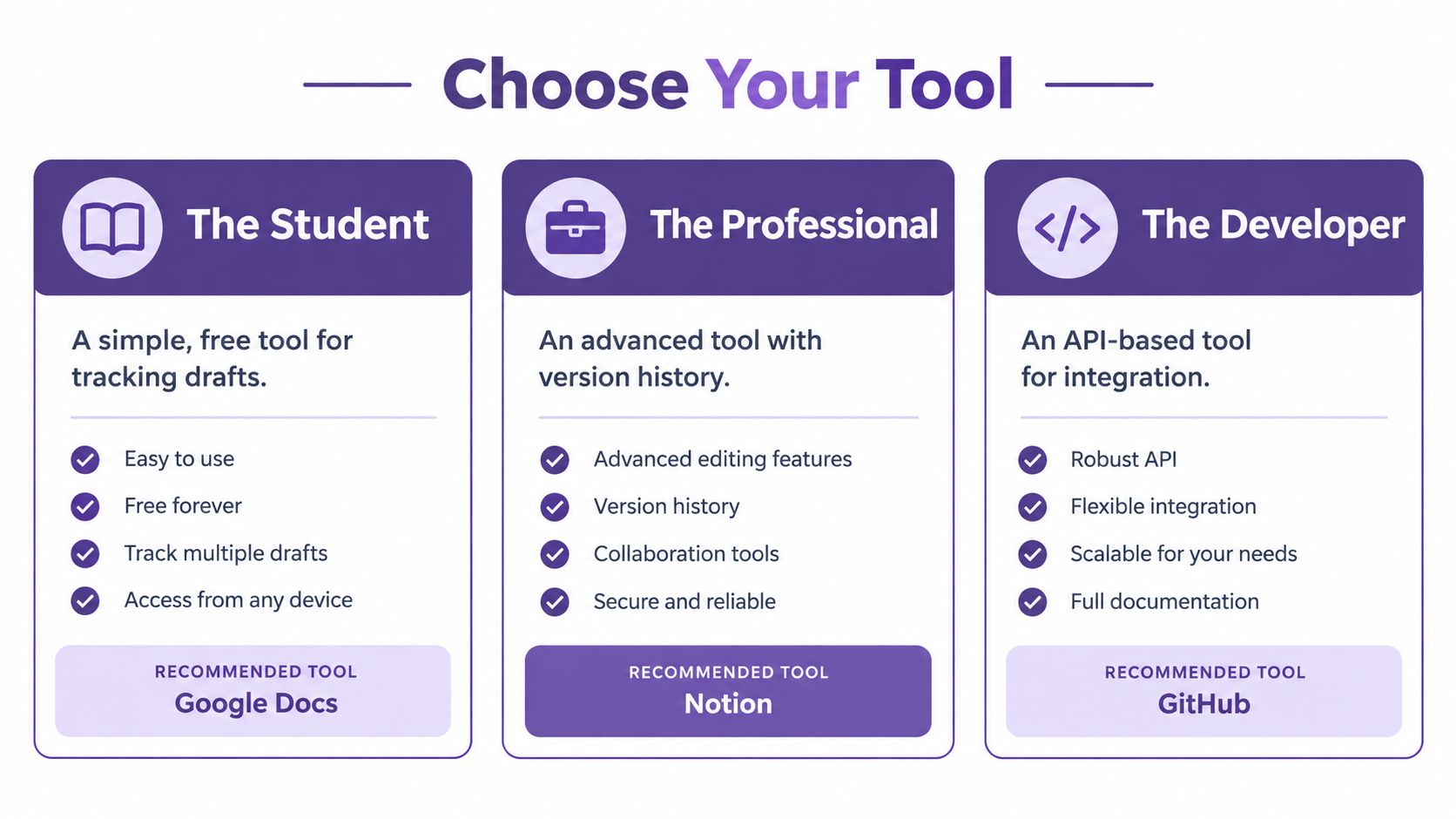
For writers and editors, use a word-level visual diff with side-by-side and inline views. Ignore whitespace when formatting distracts you, but keep case sensitivity when capitalisation carries meaning. Character-level comparison is worth using for final proofreading.
For legal, policy, and procurement work, prioritise privacy, clear change context, and exportable records. A local browser tool can suit quick checks, but sensitive organisations should verify retention and processing arrangements before adopting any platform.
For students and researchers, use an originality scanner only when you need external database matching. Pair it with a visual comparison of your own drafts and inspect every flagged passage manually. A similarity result is evidence for review, not a disciplinary conclusion.
For intermediate language learners, choose a tool that makes sentence-level changes easy to inspect. Compare your original with a corrected version, label grammar, meaning, and register changes, then rewrite the sentence independently. A workflow built around real output, as described in task-based language teaching, is more valuable than endlessly correcting isolated examples.
My recommendation: start with a fast visual diff for ordinary revision, add similarity scoring only when originality is the primary question, and keep a human review step for every meaningful rewrite. That combination gives you clarity without handing editorial judgement to an opaque score.
LenguaZen helps intermediate Spanish, French, and Italian learners turn corrected writing into lasting progress, with tutor-style explanations, real-world writing practice, and vocabulary saved in context. Visit LenguaZen to compare your drafts more thoughtfully and keep building confidence beyond the beginner plateau.